Pretending to Be Good With Computers

There aren't many truly amazing things in life,
but there are things that look amazing.
One of those things
is what I want to talk about today —
two little tricks that let you
"pretend" to be good with computers.
To be honest, the real point boils down to this:
learning how to actually use your computer well.
It's not hard, but with a couple of small habits you can massively boost how efficiently you work,
and as a bonus, you can "pretend" to be great with computers too — so make good use of these.
Let's get started.
- Make use of keyboard shortcuts
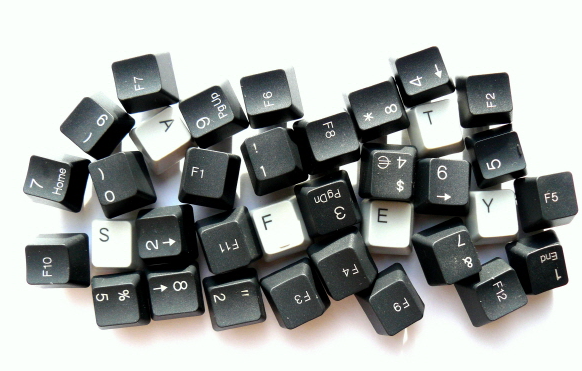
A keyboard shortcut is a key combination (or command/button) created
to let you perform a task
faster and more easily than going through the full command process.
You probably already know quite a few.
Classic examples are Ctrl + C (copy), V (paste),
Alt + F4 (close), Alt + Tab (switch windows), and so on...
There are plenty of shortcuts you already use all the time.
To begin with, just using shortcuts at all
already means you're using your computer well,
since they let you skip several steps of a command.
But beyond that,
if you learn and use shortcuts that other people rarely use,
you'll look like you're really good with computers to anyone who doesn't know better.
That's because it means you're barely touching the mouse.
Think about it — in movies, hackers typing away on the keyboard always look cool, right?
Have you ever seen a hacker do something impressive with a mouse?
(Sorry if you have.)
Anyway, let me introduce a few of the ones I use often.
(Some of you will definitely already know these. They're not secret shortcuts nobody knows —
think of them more as a collection of useful shortcuts that most people just don't bother using.)
① Opening the Run dialog: Windows key + R
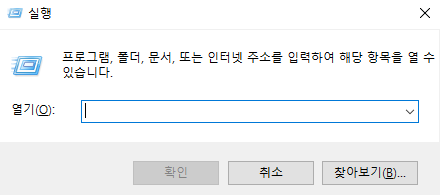
If you press the Windows key and R at the same time, the Run dialog pops up.
Try it — it appears instantly~
So what do you do with the Run dialog once it's open?
You can use it to "pretend" to be good with computers.
That's because if you know the name of a program, you can launch it instantly.
When using a computer, you'll often need Notepad, Paint, or Calculator.
Notepad - notepad
Paint - mspaint (roughly short for Microsoft Paint, at least that's how I remembered it. Probably right^^;;;lol)
Calculator - calc (the first four letters of "calculate")
Personally, I use Paint the most, since after taking a screenshot with the Print Screen key, it's convenient to paste it into Paint and crop out just the part I need. With just these four shortcuts — Print Screen, Ctrl + C, Ctrl + V, Ctrl + N — I can comfortably capture whatever part I want. I barely need any other program.
If you do this at school or work, in front of a bunch of people,
anyone who doesn't know better will probably think you're really good with computers.
.
*** Bonus) Checking your IP address
There are several ways to check your computer's IP address.
I'll introduce the one that's a bit simple and looks kind of cool.
Type cmd into the Run dialog.
That will open the Command Prompt window.
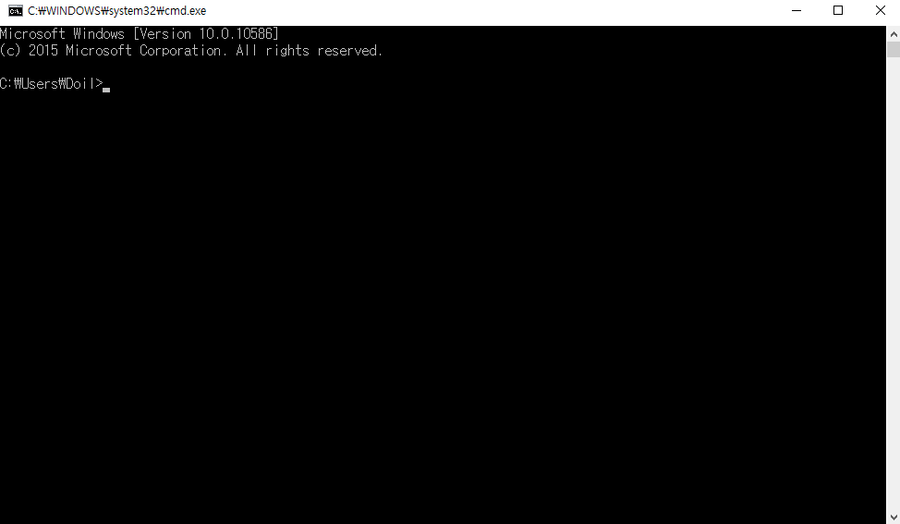
A lot of people know this as the "DOS window."
You've probably seen it before.
Type the following here:
ipconfig
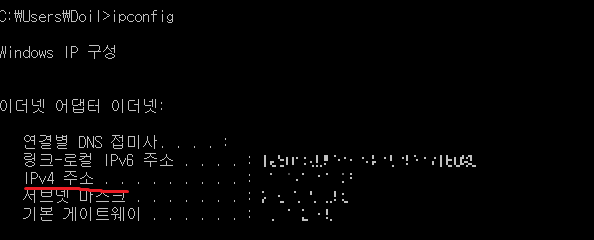
That will show you your IP address right away.
See the part that says IPv4 Address? That's your IP address. (I've blurred out mine.)
This one is a must-use when you want to pretend to be good with computers. lol
Try checking your IP this way sometime when there are a lot of people around.
I'll also share one more incredibly useful (and "looks-like-a-computer-expert" bonus) Windows key shortcut:
Windows + ← : Snap the window to the left half of the screen Windows + → : Snap the window to the right half of the screen Windows + ↑ : Maximize the window Windows + ↓ : Minimize the window Windows + D : Show the desktop
② Pretending to be a PowerPoint pro
College students in particular use PowerPoint a lot.
Here are some shortcuts that are handy when giving a presentation.
- F5, Shift + F5 : These are the shortcuts to start a slide show. Most people know these.
But in case you don't know the difference between pressing Shift along with it or not, here it is:
F5 starts the slide show from the very first slide,
while Shift + F5 starts it from whichever slide you're currently viewing.
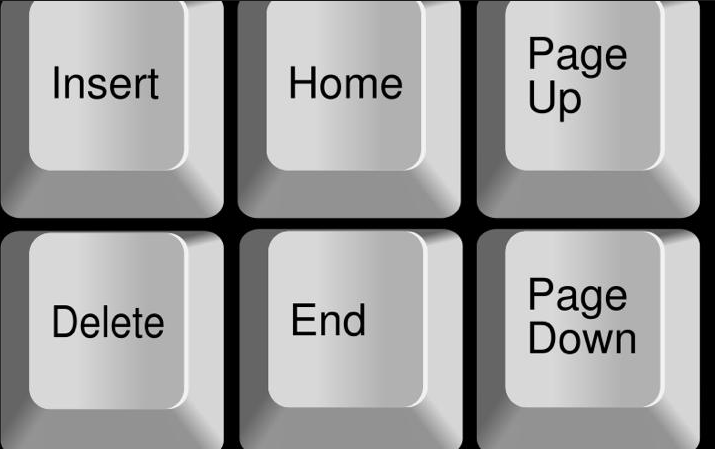
- Home, End : Jump to the first or last slide
Right above the arrow keys, you'll find the Home and End keys.
Pressing Home takes you to the first slide.
Likewise, End takes you to the very last slide.
- num + enter : Jump to a specific slide
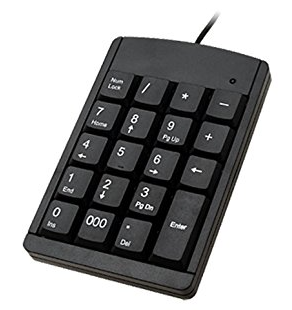
You probably know this numpad keyboard.
When giving a presentation with PowerPoint,
there are times you want to jump straight to a specific slide and end up frantically flipping through them.
If you use this trick instead,
you'll land exactly on the slide you want,
which lets you "pretend" to be good with computers.
Want to jump to slide 13? Type 13 on the numpad and press enter.
ex ) Someone asks a question during your presentation — "About what you said earlier, 'blah blah blah,' I didn't quite get it..." —
and you can jump straight to that slide!
Of course, to use this you need to know the slide numbers off the top of your head (which, if you're the presenter, you probably already do lol).
- '.' and ',' - You can turn the screen off (black screen, white screen)
During a slide show, pressing . turns the screen black, and pressing , turns it white.
I've personally used this during team-building activities — for word-memorization games, spot-the-difference games, and so on...
whenever I needed to instantly blank out the screen.
- Make use of remote access
Remote access is really
the crown jewel of computer usage.
As long as you have an internet connection,
being able to connect remotely from anywhere
is genuinely amazing.
To start, Windows provides a built-in remote access feature.
(This probably won't work on the Home edition. Sorry, I'm assuming most of you are using the Enterprise or Professional edition.)
Press Windows + R, as I mentioned above, to open the Run dialog.
Then type mstsc.
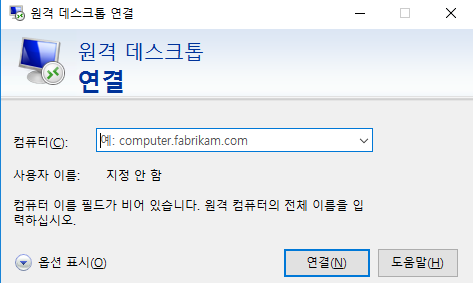
This will open the "Remote Desktop Connection" window as shown below.
Enter the IP address of the computer you want to connect to, and you'll be connected remotely.
Of course, there are a few settings and things to consider for remote access,
but if you search a little, you'll find
plenty of guides on how to set up Windows Remote Desktop.
It doesn't require much networking knowledge.
Since covering all of that here would make this post way too long
(and honestly, I'm too lazy to take more screenshots),
I'll leave that part up to you.
Anyway, the main point I'm trying to make is this:
At school or work, a lot of people bring their presentation files
on a USB drive or via email.
But if you use remote access (assuming you have an internet connection),
you can just connect remotely and run your presentation file directly.
There are real advantages to this:
you don't need to save your presentation separately on email or a USB drive,
you don't need to save your fonts separately,
and ultimately, it makes you look like you're good with computers.
What I've shared here is just one small slice of what remote access can do.
How you use it really depends entirely on you.
Alright, happy computing to everyone~
댓글 0